The post How to switch WordPress Gutenberg Editor to WordPress Classic Editor ? appeared first on Online Global Master.
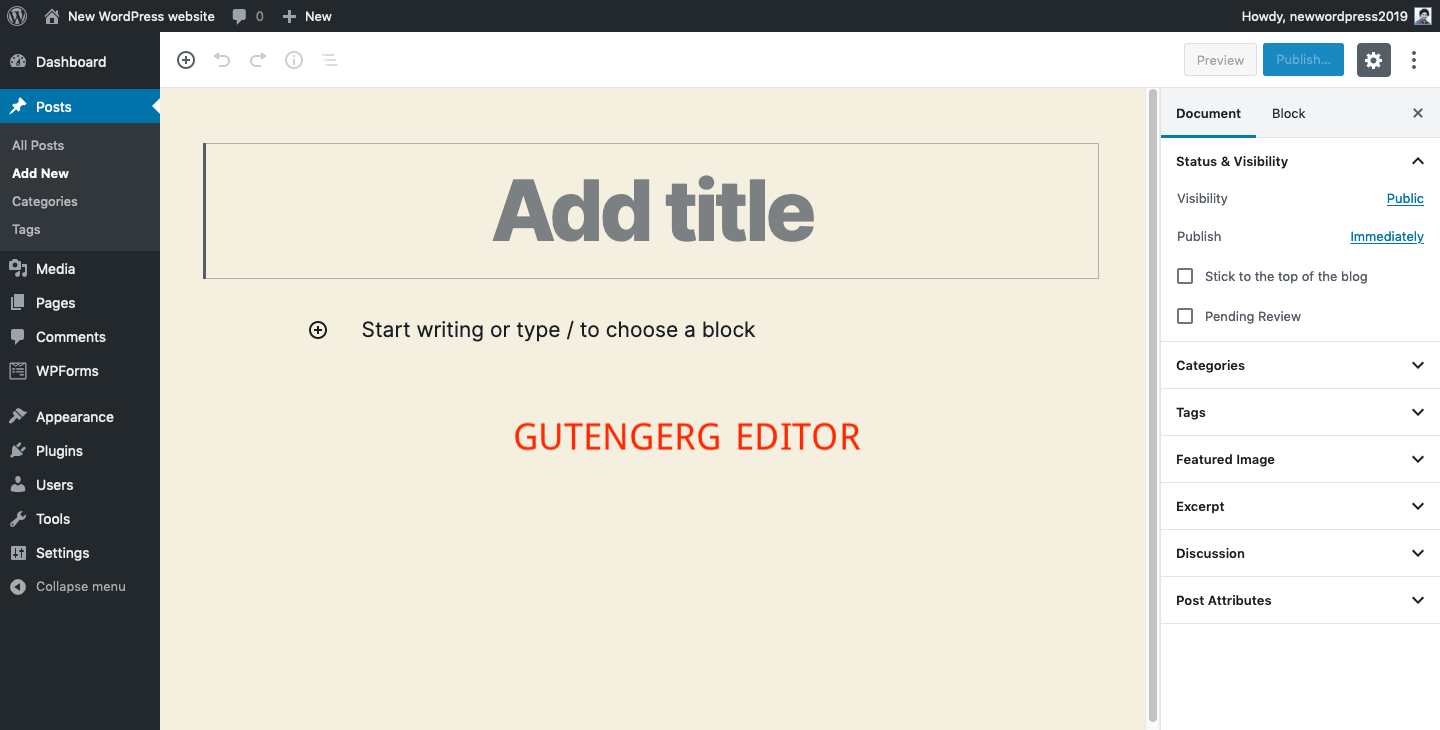
]]>This is the Gutenberg Editor interface. take a look and we will change it to classic editor eventually.
After login to your WordPress Dashboard, you Need to click on Plugins => Add New . you will see some popular plugins and has search bar in the right side. Just write “Classic Editor” and hit the Enter button. you will see like below image.

Now, you should click on “install now” button and after installing you need to click on”Activate” button to active the plugin properly.

Click “Activate” button to active the plugin.

When you active the plugin you need to go to add new post/page to see the interface.

Still, if you want to change both editor in your desired time, you can. To change Classic to Gutenberg or Gutenberg to Classic Editor, you should click on Settings => Writings and will see “Default editor for all users” menu with 2 options “Classic Editor” and “Block Editor” . From here, you can change your default editor for all users.

After that, you will see another menu “Allow users to switch editors” with “Yes and No” . so, you can also give option user to switch editors or not.
Finally, Hope you will enjoy this short article regarding this topic. Thanks.
Want to watch video tutorial how to install Classic Editor instantly? Watch this :
Hosting Get FREE DomainThe post How to switch WordPress Gutenberg Editor to WordPress Classic Editor ? appeared first on Online Global Master.
]]>